
Nobody likes an uninvited guest. The mouse crossing the kitchen floor. The spider scuttling across the blanket. The wild boar uprooting the garden. The snake swimming in the pool. The moth flying through the closet. The unpleasant uncle spoiling a really splendidly amusing party… Or those uninvited idiots crashing a Zoom meeting.
An actual instance of this was recently reported to the Computer Security Officer: “during the workshop, we had a Zoom connection which I recorded. I then stopped it during lunchtime. When back from lunch, we heard noises in the [Zoom] room and discovered that approx. 10 persons (externals) were connected to our links. They were using a few offensive terms and put some “sexual videos”. I heard one of them saying “we are in the wrong link”, but still a few people were still trying to connect.”
Indeed, if Zoom links are made public, either out of necessity, when shared with a large community and forwarded to many, or when published on a public Indico event, it is not only those who are invited and for whom the meeting is intended who might show up, but also the uninvited mice, spiders, boars, snakes, moths, uncles or any other idiot who just wants to sneak in, spy on the conversations, spoil the discussions or create havoc – like in the unfortunate aforementioned incident. They responded in the right way in this case – they “removed them one by one and created [Zoom] reports (see screenshot below).”
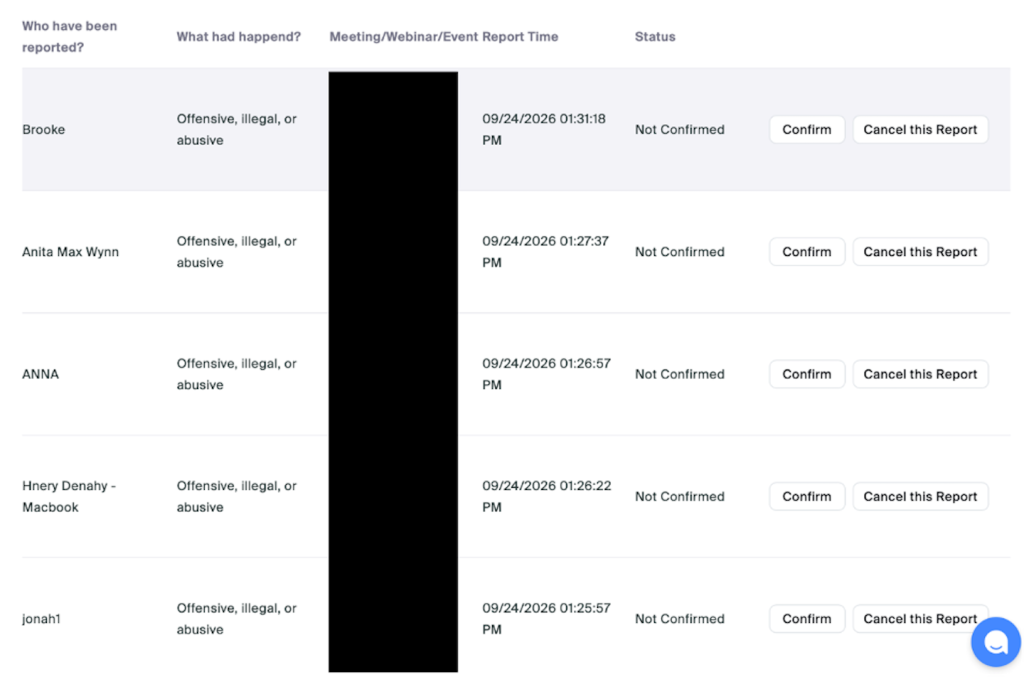
Familiarise yourself with how to kick out people fast and efficiently. Usually, if you are the host, you can open the participants list and click on the “…” to mute people or even remove them from the meeting. Note, however, that you should not solely rely on the displayed name, as any non-authenticated person can put a fancy handle of their choosing.
And you can do even more beforehand! Different kinds of rodent and insect traps, a fence, a caring aunt… and not making Zoom connection links public. Instead, require CERN Single Sign-On authentication to join (although that limits participants to holders of a CERN computing account). Alternatively (and ideally always in addition!), enable the Zoom waiting room feature, so you can pick from the list of names (which does not prevent someone from pretending to be an invitee). As host, you find the waiting room option under “Host tools” (you might need to open the “More” menu). This feature also comes with other, more granular, settings: have a look under “Participants”, where you can set what your participants can and cannot do. Limit this to the bare minimum required to keep your meeting as productive as possible. For more settings, check out this CERN VideoConferencing homepage.
So, have a look at the default settings of your meetings. Consider where you can reduce functionality to better protect your meeting, and where you can accept uninvited nastiness. Help make your next party meeting a resounding success.
________
Do you want to learn more about computer security incidents and issues at CERN? Follow our Monthly Report. For further information, questions or help, check our websiteor contact us at Computer.Security@cern.ch.